![con.png]](https://help.contractorcommerce.com/hs-fs/hubfs/con.png?height=50&name=con.png)
There are 3 main ways memberships are typically configured within a contractor's ServiceTitan:
Sell multiple quantities of the same membership
- Selling a 2 system membership equates to selling 2 quantities of one SKU membership.
Sell a membership specific to the number of systems involved
- Selling a 2 system membership equates to selling 1 SKU of a main membership, then a separate SKU for the membership of 2 units, then a separate membership SKU if 3 units, and so on.
Sell a Core membership SKU, then additional add on SKUs
- A membership of 3 systems, for example, would equate to one core membership SKU, then 2 quantity of an add on SKU.
Please make sure you have created a payment type within your ServiceTitan named Contractor Commerce, and labeled it with the Cash attribute:
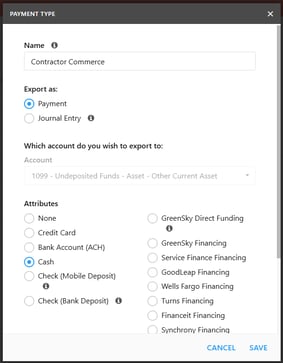
Select this payment type within your integration page in your Contractor Commerce integration settings. This will let ServiceTitan know that payment for these memberships are being collected outside of ServiceTitan.
- Inside your ServiceTitan integration on Contractor Commerce, navigate to Sales > Sell Memberships.
- Select the membership configuration that best suits you
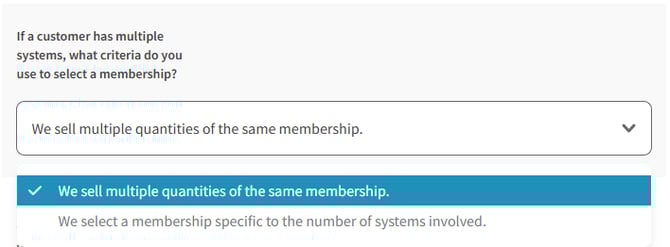
- Select the memberships to port from your Service Titan into your services section of the store:

- Select the terms and conditions one needs to accept before they may purchase a membership, as well as the Business Unit to apply, and scheduling URL to insert after a successful purchase of the membership:
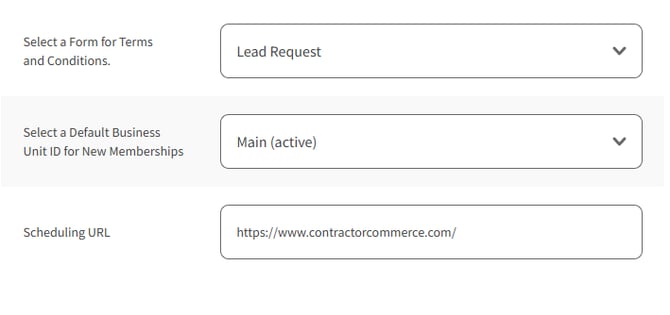
- Select the membership configuration that best suits you
Linking a service or membership within the store to a Service Titan membership
The selected memberships from the integration page should create a service within your dashboard.
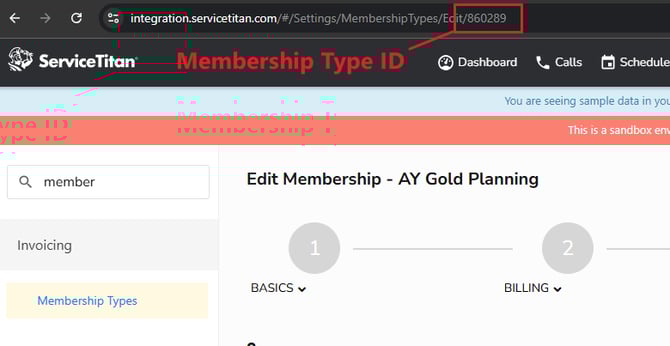
The created services section within the command center contain ServiceTitan Attributes to allow you to link a service to a membership within Service Titan. Namely: Membership Type ID, Sale task ID, and Renewal Task ID.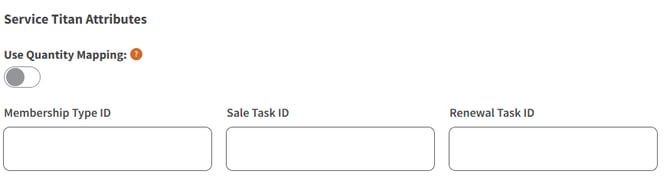
These fields can be found within their Service Titan under: Settings > Invoicing > Membership Types.

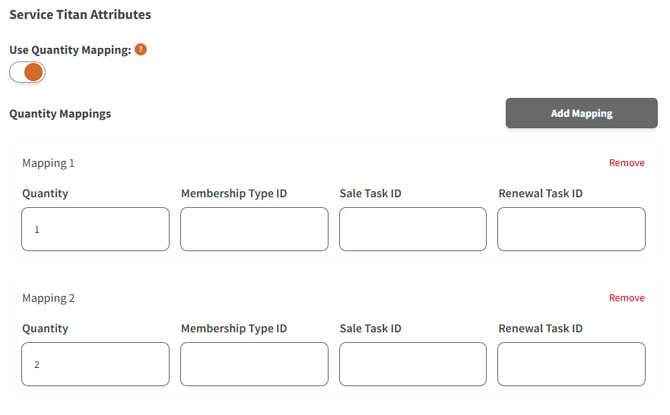
This process is repeated for quantity mapping, in case you utilize different SKUs based on the quantity of systems sold:
To get the SALE TASK ID and RENEWAL TASK ID, you need to navigate to your Pricebook>Services>[edit] membership you're configuring.
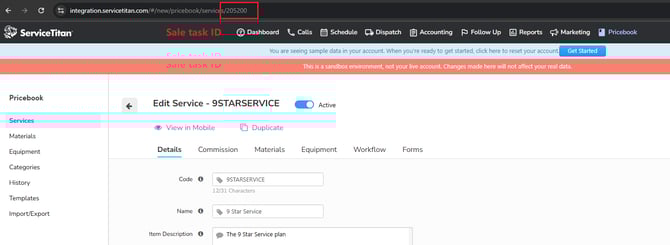
For memberships with a set duration, you will need to attach your renewal task to the membership within Contractor Commerce. This renewal task is what fires to re-instate the membership after it has expired. If your membership has an ongoing duration without expiration, a renewal task is not needed.
*Core SKU + add-on SKU functionality is still being worked on, and this page will be updated once ready.
*This integration requires memberships to be set up with recurring billing. One-time payment memberships are not supported at this time.